Nutrition Facts Label Generator
Type the serving size and nutrient amounts and get a ready Nutrition Facts panel with rounded values and % Daily Values.
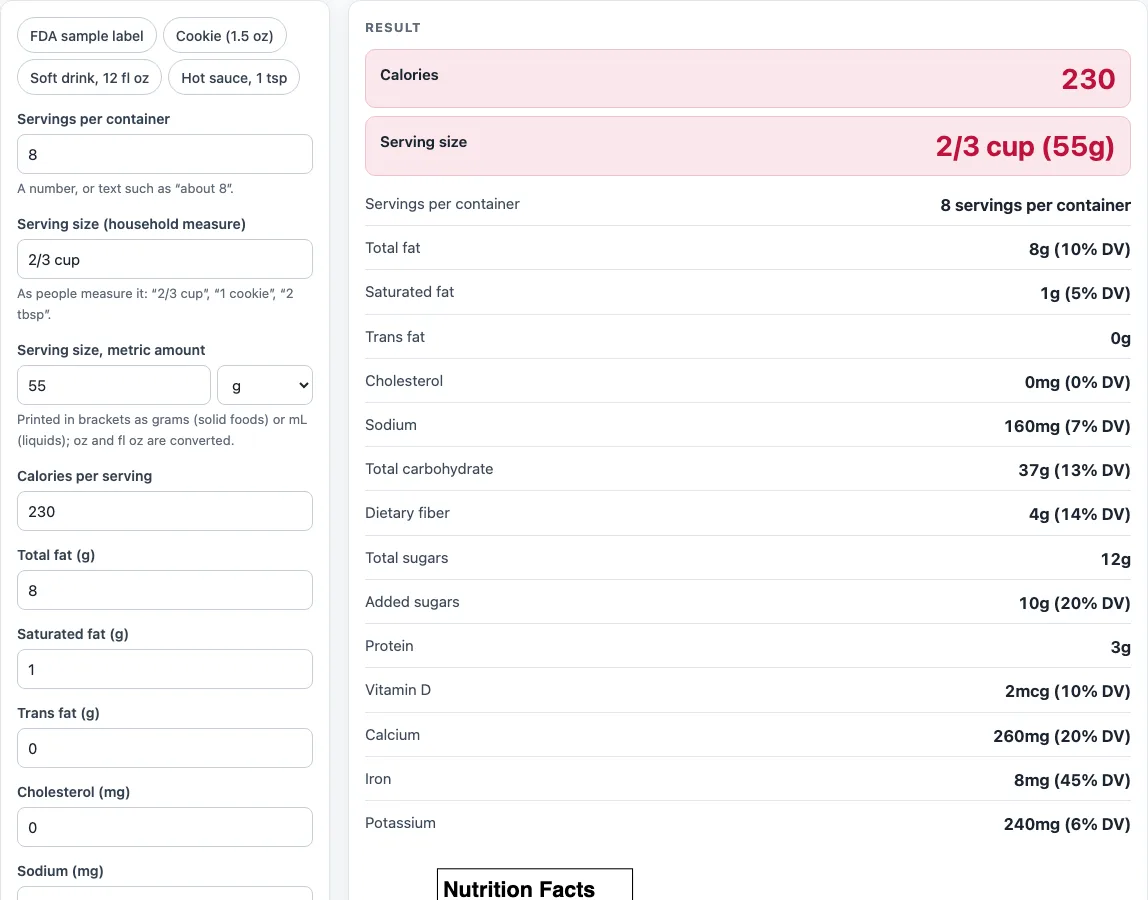
How to use the Nutrition label generator
- In “Servings per container”, enter a number or text such as “about 8”.
- In “Serving size (household measure)”, enter the amount as people measure it, such as “2/3 cup”, “1 cookie” or “2 tbsp”.
- In “Serving size, metric amount”, enter a quantity and choose g, oz, mL or fl oz. The label prints it in brackets as grams or mL.
- Enter “Calories per serving”, then each nutrient per serving: total fat, saturated fat, trans fat, cholesterol, sodium, total carbohydrate, dietary fiber, total sugars, added sugars, protein, vitamin D, calcium, iron and potassium.
- Open “More options” for the ingredients statement, the “Allergens: Contains” line, “Other vitamins and minerals” (one per line, such as “Magnesium, 49 mg”) and “Show %DV for protein”.
- Read the result rows, which show each rounded amount with its % Daily Value, and any warnings. Fix a value a warning points to before you use the label.
- Download the label as SVG or PNG, or print it.
Leave a nutrient box empty when the food has none; a blank counts as zero. Serving size is the one required text field. The example buttons load “FDA sample label”, “Cookie (1.5 oz)”, “Soft drink, 12 fl oz” and “Hot sauce, 1 tsp”. “Reset”, “Copy link”, “Copy result” and “Print / save as PDF” work as named.
How do I make a nutrition label?
Find the nutrient amounts for one serving and enter them per serving, not per package or per batch. Start with the serving size in household measure and its metric amount, then the servings per container, which only appears as text on the label.
Next, enter each nutrient as it appears in your testing or supplier data. The % Daily Value (%DV) is worked out from the amount you declare, using the FDA Daily Values for adults and children aged 4 and older. The default sample uses 2/3 cup (55 g) with 8 g of total fat, and 8 ÷ 78 = 10% DV. Sodium of 160 mg is 160 ÷ 2,300 = 7% DV.
The tool also checks that your numbers agree. It warns when saturated plus trans fat exceeds total fat, when added sugars exceed total sugars, when fiber plus total sugars exceed total carbohydrate, or, if the serving is in g or oz, when fat, carbohydrate and protein weigh more than the serving. Fix these before you use the label.
How are values rounded on a Nutrition Facts label?
The tool applies the rounding rules of 21 CFR 101.9(c) to each amount first, then works out the %DV from the declared amount, so the label shows the rounded figure, not your raw number. Calories under 5 show as 0, up to 50 round to the nearest 5, and above 50 to the nearest 10. Sodium under 5 mg shows as 0, then rounds to the nearest 5 mg up to 140 mg and the nearest 10 mg above. Grams of carbohydrate, fiber, sugars and protein round to whole grams, and 0.5 g to under 1 g reads “less than 1 g”.
Macronutrient %DV is a whole percent. For vitamins and minerals it rounds to the nearest 2% up to 10%, the nearest 5% up to 50% and the nearest 10% above. In the sample, vitamin D of 2 mcg ÷ 20 mcg is 10%, calcium of 260 mg ÷ 1,300 mg is 20%, iron of 8 mg ÷ 18 mg (44.4%) shows as 45%, and potassium of 240 mg ÷ 4,700 mg (5.1%) shows as 6%.
Open “How it was calculated” under the results to see each step with your numbers.
Sources
- 21 CFR 101.9 (eCFR) — Daily Values (c)(8)(iv) and (c)(9), rounding of calories, fat, sodium, carbohydrate and %DV
- FDA guidance on declaring quantitative amounts of vitamins and minerals (2019) — rounding increments for vitamin D, calcium, iron and potassium
- FDA, Daily Value on the Nutrition and Supplement Facts Labels — the Daily Values in plain form
Worked examples
| Input | Result |
|---|---|
| serving size 2/3 cup (55g), servings per container: 8 | 230 calories; total fat 8g (10% DV); sodium 160mg (7% DV); carbohydrate 37g (13% DV); protein 3g |
| serving size 1 cookie (43g), servings per container: 12 | 210 calories; total fat 10g (13% DV); sodium 140mg (6% DV); carbohydrate 29g (11% DV); protein 2g |
| serving size 1 can (355mL), servings per container: 1 | 150 calories; total fat 0g (0% DV); sodium 45mg (2% DV); carbohydrate 39g (14% DV); protein 0g |
| serving size 1 tsp (5mL), servings per container: about 28 | 0 calories; total fat 0g (0% DV); sodium 190mg (8% DV); carbohydrate less than 1g (0% DV); protein 0g |
| serving size 2 tbsp (32g), servings per container: 16 | 190 calories; total fat 16g (21% DV); sodium 150mg (7% DV); carbohydrate 6g (2% DV); protein 7g |
Calculated by the tool above with these values.
Frequently asked questions
Is the calculator free, and is anything I type uploaded?
Yes, it is free, runs in your browser and needs no sign-up. Nothing you type is uploaded.
Can I use the results in commercial work?
Yes. You can use the numbers, steps, printouts and labels in any work, including product packaging, menus and recipes, and no attribution is needed. You remain responsible for accurate inputs and for the rules that apply to your product.
Does the tool calculate nutrition from a recipe?
No. It draws the panel from the values you type per serving. It has no ingredient database, so you supply the nutrient amounts for the finished serving.
Is the label approved by the FDA?
No. The panel follows the FDA format, but the FDA does not review or approve it. The maker is responsible for accurate values and for following the labeling rules, including exemptions and small-package formats.
Why is %DV for protein not shown by default?
“Show %DV for protein” is off by default. FDA requires it only when a protein claim is made or the food is for infants and young children. Tick the box if you need it.
Can I make an EU or Canadian nutrition label with this tool?
No. It draws the US FDA format only. Check the rules where the food is sold for other formats.
Related tools
- Supplement facts label generator: Use it when you need a supplement label layout instead of a food Nutrition Facts panel.
- Food cost calculator: Use it to work out what each food item costs you to make or buy.
- Recipe cost calculator: Use it to add up ingredient costs for a whole recipe and cost each portion.
- Recipe scaling calculator: Use it to change a recipe’s batch size before you calculate serving values.
- Baker’s percentage calculator: Use it to express bread and dough ingredients as percentages of the flour weight.
- Sourdough calculator: Use it to plan sourdough quantities for a given loaf size and hydration.
- Pizza dough calculator: Use it to work out dough ingredient amounts for a set number of pizzas.
- All calculators: Use it to browse every calculator on the site.